
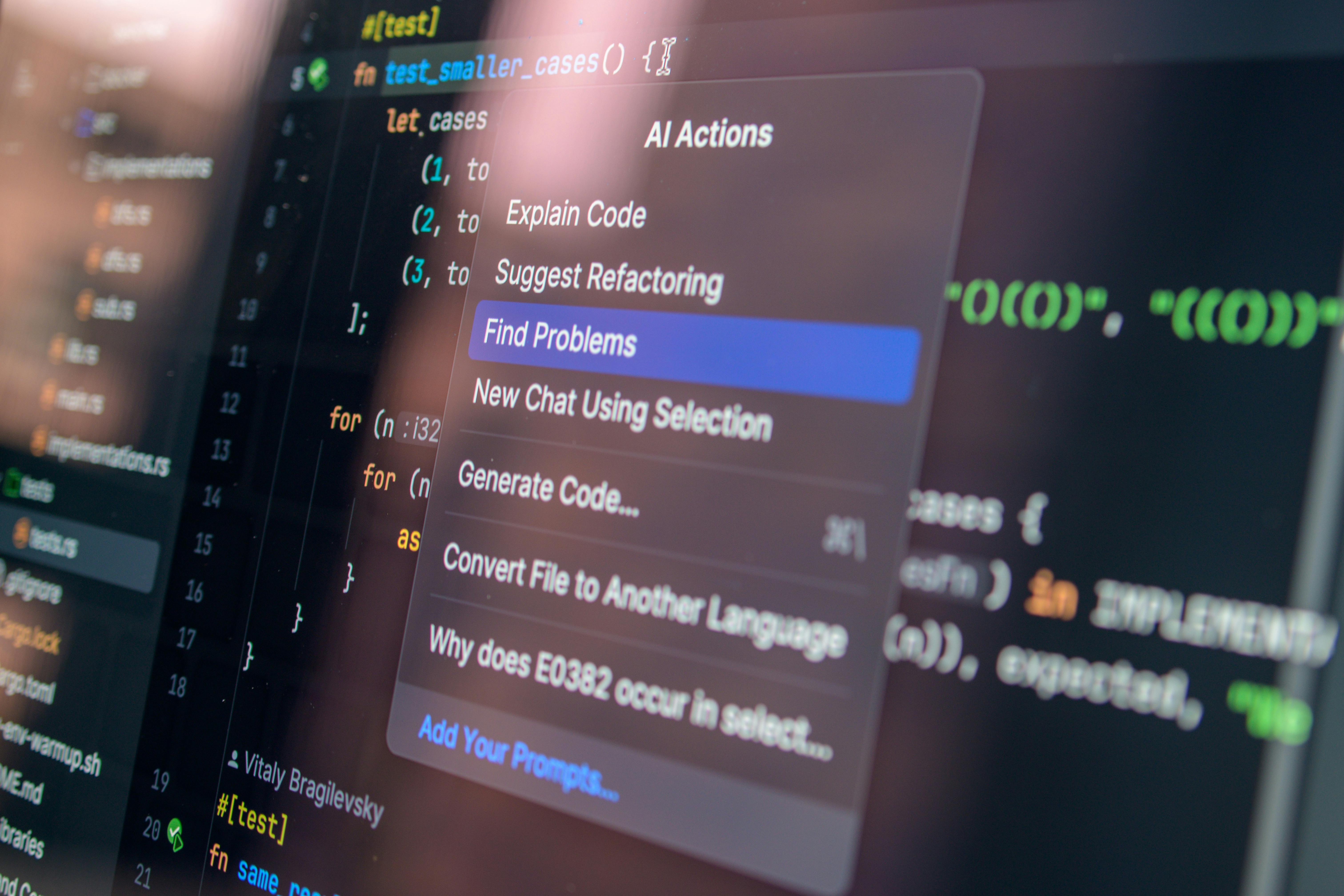
If your real destination is not a city but the right AI coding assistant for VS Code, the smartest itinerary is a structured evaluation plan. The current market has moved far beyond autocomplete: the strongest tools can inspect an entire repository, propose architectural changes, create new files, refactor across modules, run terminal commands, and behave more like a junior-to-mid-level software engineer working beside you.
The interesting twist is that “agentic” means different things across products. Some tools are superb at in-editor edits but weaker at autonomous multi-step execution; others shine at repository reasoning and task planning but put limits on free usage, model access, or local file operations. That makes a 7-day comparison especially useful if you want a free VS Code AI agent or at least a tool with a generous free tier before you commit.
As of March 04, 2025, the best options for your use case are not generic chat extensions but coding agents built for whole-codebase awareness, multi-file code generation, and direct local file modification. The shortlist below emphasizes tools that work as VS Code extensions and are relevant for software engineering workflows rather than simple code completion.
Top Picks for VS Code
For your exact requirements, the strongest candidates are Cline, Continue, and GitHub Copilot with agentic features enabled where available. I would also keep Cursor in mind as a benchmark, but it is a standalone editor rather than a VS Code extension, so it falls outside your stated requirement.
- Cline: Best fit if you want a true agent inside VS Code that can inspect the repo, create files, edit multiple files, use the terminal, and work directly in your local project. Strong for autonomous software engineering tasks. Free to install, but usage cost depends on the model/API you connect.
- Continue: Best flexible open-source option for VS Code. Excellent if you want control over models, local LLM support, codebase chat, and custom workflows. Free and highly configurable, though agentic behavior varies based on setup.
- GitHub Copilot: Best polished mainstream option if you want ease of use, solid code suggestions, workspace context, and growing agent-style capabilities. Free tier exists for many users, but the free allowance is more limited than fully open alternatives.
- Codeium / Windsurf plugin ecosystem: Worth testing for autocomplete and chat, though for deep multi-file agent workflows in plain VS Code, it is usually less compelling than Cline or Continue for your exact brief.
If your absolute priority is software engineer agent behavior in VS Code, start with Cline. If your absolute priority is free-forever flexibility and control, start with Continue. If your priority is lowest friction and broad reliability, test GitHub Copilot alongside them.
7-Day Evaluation Itinerary
Day 1 – Define the benchmark and install the contenders
Morning: Set up a realistic test repository in VS Code. Use a medium-sized project with multiple folders, at least 20–50 source files, tests, config files, and a README so you can assess repository understanding, code generation, and cross-file refactors under real conditions.
Afternoon: Install Cline, Continue, and GitHub Copilot in VS Code. For fairness, prepare a checklist: repo indexing quality, ability to create new files, quality of multi-file edits, terminal/task execution, test fixing, documentation generation, and free-tier limits.
Evening: Run the same first prompt in each tool: “Understand this repository, summarize architecture, identify the auth flow, and propose a plan to add feature X.” Pay attention to whether the assistant actually inspects relevant files, cites project structure accurately, and asks smart clarification questions rather than hallucinating architecture.
Day 2 – Test Cline as the closest match for an autonomous VS Code coding agent
Morning: Evaluate Cline on a greenfield feature. Ask it to create a new feature end-to-end: add backend routes, update a service layer, create UI components, wire state management, and add tests. Cline’s appeal is that it can work across files and operate more like an agent than a chat sidebar.
Afternoon: Test local file modification and terminal use. Give it a task such as: “Run the test suite, fix failing tests, then update the implementation so the API supports pagination.” Watch whether it creates files cleanly, edits existing modules safely, and explains command execution before acting.
Evening: Review practical trade-offs. Cline is one of the strongest answers to “best agentic AI coding assistant for VS Code,” but its effective free tier depends on the model provider you use. If you connect free or low-cost local models, it can be extremely economical, though code quality and reasoning may trail top paid cloud models on harder tasks.
Day 3 – Test Continue for open-source flexibility and free-first workflows
Morning: Use Continue for codebase chat and planning. Ask it to map the repository, identify the data flow, and suggest a refactor plan for a tangled module. Continue is especially appealing if you want an open-source VS Code AI assistant with customizable model backends.
Afternoon: Test multi-file generation. Ask Continue to create a new module, corresponding tests, and documentation, then modify imports in existing files. Its performance here depends heavily on your chosen model, but its strength is that you are not locked into one vendor.
Evening: Assess whether flexibility outweighs setup overhead. Continue can be one of the best free AI coding assistants for VS Code if you are comfortable configuring providers or local models. It is excellent for developers who value control, privacy options, and extensibility over a fully packaged out-of-the-box agent experience.
Day 4 – Test GitHub Copilot for polished day-to-day engineering
Morning: Use GitHub Copilot in a realistic maintenance task. Ask it to understand a bug across several files, propose a fix, and generate tests. Copilot is often strongest when you want quick momentum with minimal setup and a familiar developer experience inside VS Code.
Afternoon: Compare repository awareness. Ask it to explain how a request flows from route to controller to data layer to UI state, then implement a change that touches all of them. Evaluate whether it merely suggests snippets or can sustain a coherent multi-file plan.
Evening: Judge fit versus free usage. Copilot’s free tier can be useful for light-to-moderate experimentation, but if your goal is heavy autonomous coding, you may hit limits faster than with open-source setups. Still, for many developers, it remains one of the best-balanced choices for VS Code AI code generation and practical daily coding help.
Day 5 – Stress test all three on a real software engineer task
Morning: Give each tool the same substantial assignment: “Add role-based access control, update the database schema, create migrations, revise API handlers, patch the frontend, and add unit/integration tests.” This is where multi-file code editing in VS Code becomes the key metric.
Afternoon: Measure not just completion, but supervision burden. Count how many times you had to redirect the tool, correct file paths, explain architecture already present in the repo, or manually stitch together half-finished edits.
Evening: Rank outputs on engineering usefulness. The best assistant is not the one that writes the prettiest isolated function—it is the one that safely navigates your codebase, updates the right files, preserves conventions, and reduces real development time.
Day 6 – Evaluate free tier reality, privacy, and local-model options
Morning: Review pricing and free-use practicality. For your requirement of generous free tier or free-forever options, Continue is typically the easiest recommendation because it is open-source and can work with local models. Cline is free as software, but total cost depends on the model backend. Copilot is the least attractive if unlimited free-heavy usage is your primary goal.
Afternoon: Test privacy-sensitive workflows. If you work with proprietary code, compare whether each tool supports local or self-chosen models, approval gates before file changes, and transparent command execution. This matters almost as much as raw coding quality.
Evening: Consider your ideal operating mode. If you want a guided copilot, Copilot may be enough. If you want a configurable platform, Continue stands out. If you want an autonomous agent that can directly act on your repository with strong multi-step behavior, Cline is usually the better fit.
Day 7 – Make the decision and choose by use case
Morning: Pick a winner for your main workflow. For repo-wide understanding, new file creation, cross-file edits, and direct local file changes, Cline is the closest match to your stated need. It feels most like a software engineer agent working in VS Code rather than a glorified autocomplete tool.
Afternoon: Pick a second tool for cost control or fallback. Continue is the smartest companion choice if you want free-first experimentation, local model compatibility, and the ability to tune your setup over time. It is also the best hedge against vendor lock-in.
Evening: If you prefer convenience over tinkering, keep GitHub Copilot in the mix. But if I were advising you directly based on your brief, I would rank them: 1) Cline, 2) Continue, 3) GitHub Copilot. That order best reflects your need for a VS Code AI agent that can behave like a hands-on software engineer while still respecting free or low-cost entry points.
Recommended Shortlist
- Best overall for your use case: Cline — strongest agentic behavior in VS Code, excellent for multi-file tasks and local repo work.
- Best free/open-source option: Continue — ideal if you want free-forever flexibility, local models, and customization.
- Best polished mainstream option: GitHub Copilot — easiest onboarding and strong everyday coding support, but less compelling on free usage and full agent autonomy.
The best choice depends on whether you value autonomy, cost control, or convenience. For your exact requirements, start with Cline, keep Continue as your free-first power option, and use Copilot as the usability benchmark.
In short: if you want the best AI coding assistant for VS Code in 2025 that can understand the whole repository, create files, write code across multiple files, and modify local files directly, Cline is the first tool I would test. If free-forever matters most, Continue deserves equal attention and may become the better long-term fit depending on your model setup.