
7-Day Digital Reset Itinerary: What to Do After a VPN and Antivirus Changed Your Location Settings
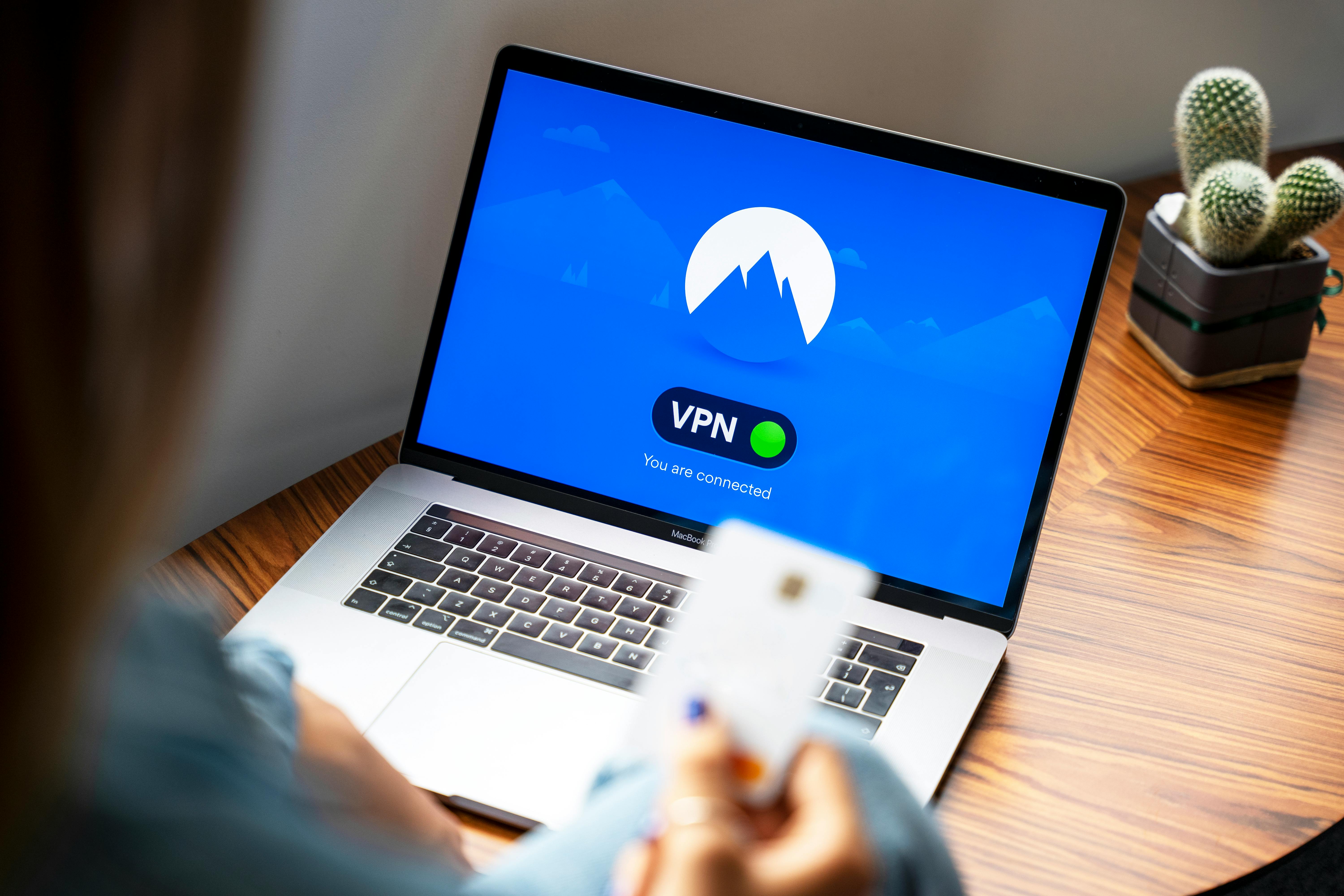
Your prompt appears to describe a computer and internet problem, not a travel destination. Because there is no valid city, country, or state to build a trip around, I cannot responsibly create a destination-based travel itinerary from that input.
What you likely need is technical troubleshooting: if your computer still appears to be using a foreign IP address after turning off a VPN and installing antivirus software, the cause is often a VPN app still running, a system proxy left enabled, DNS settings that have not refreshed, or security software filtering traffic. In some cases, your browser may also be using cached location data, making it seem like your country has not changed back.
The safest first step is to disconnect the VPN completely, restart the computer, and verify whether the VPN app is still launching at startup. If the problem continues, check whether a proxy is enabled in your system network settings, and temporarily disable any “web protection,” “secure connection,” or “privacy” modules inside the antivirus until you confirm whether they are affecting routing.
Troubleshooting Plan
Day 1: Basic checks
Morning: Fully quit the VPN application, not just disconnect it. On Windows, also open Task Manager and make sure no VPN background processes remain; on Mac, use Activity Monitor if needed.
Afternoon: Restart your computer and reboot your modem/router. Then visit an IP-check website and confirm what country your connection shows.
Evening: Open your antivirus dashboard and look for features such as secure browsing, VPN, privacy shield, or web protection. If any routing or privacy module is active, disable it briefly and test again.
Day 2: Check system network settings
Morning: Review your proxy settings. In Windows, go to Network & Internet > Proxy; on Mac, check Network > Advanced > Proxies, and turn off anything you did not set intentionally.
Afternoon: Check your DNS settings and switch temporarily to automatic DNS from your internet provider. Then flush DNS cache and restart the browser.
Evening: Test in a different browser or an incognito/private window. This helps rule out cached location data or browser extensions.
Day 3: Browser and extension review
Morning: Disable browser extensions related to privacy, proxy, ad blocking, or location spoofing. Some of these can continue affecting web services after a VPN is off.
Afternoon: Clear browser cache, cookies, and site permissions for location. Then revisit your banking, search, or mapping sites to see whether your region updates correctly.
Evening: If only one browser shows the wrong country, the issue is likely local to that browser rather than your full internet connection.
Day 4: VPN cleanup
Morning: Open the VPN app settings and disable startup launch, auto-connect, kill switch, and split tunneling. A kill switch or forced tunnel can sometimes interfere with normal routing after disconnection.
Afternoon: If the issue persists, uninstall the VPN completely, restart the computer, and test again. Reinstall only after normal connectivity is restored.
Evening: Check whether a virtual network adapter from the VPN remains installed. If it does, disable it temporarily and retest.
Day 5: Antivirus review
Morning: Verify whether “Megabytes antivirus” refers to Malwarebytes. If so, review modules like Web Protection, Browser Guard, or Privacy/VPN-related features.
Afternoon: Temporarily disable web filtering or browser protection and test your IP location again. If the country displays correctly afterward, the antivirus settings likely need adjustment.
Evening: Update the antivirus to the latest version, then re-enable protections one by one so you can identify which module causes the issue.
Day 6: Network reset
Morning: Perform a network reset on your computer if earlier steps failed. This can remove leftover VPN routes, adapters, and configuration conflicts.
Afternoon: Reconnect to your home Wi-Fi and verify your public IP location again. If possible, also test with another device on the same network to determine whether the problem is device-specific.
Evening: If all devices show the wrong country, contact your internet provider and ask whether your public IP geolocation database is outdated. Sometimes the IP is physically correct but incorrectly mapped by websites.
Day 7: Final escalation
Morning: Gather evidence: screenshots of IP-check results, VPN settings, antivirus modules, and browser behavior. This makes support requests much faster.
Afternoon: Contact the VPN support team and antivirus support team with a short summary of what changed after installation and what troubleshooting you already completed.
Evening: If needed, use a clean test: connect your computer to a different network, or create a new user profile on the machine, to determine whether the problem is tied to your original network or account settings.
Quick Fix Checklist
- Disconnect and fully quit the VPN app
- Restart computer and router
- Disable proxy settings
- Set DNS to automatic and flush DNS cache
- Clear browser cache and location permissions
- Disable VPN kill switch and auto-connect
- Temporarily disable antivirus web filtering
- Uninstall and reinstall the VPN if needed
- Reset network settings
- Ask your ISP if your IP geolocation is outdated
In short, your issue is most likely caused by leftover VPN settings, a proxy, DNS caching, browser location data, or antivirus web protection. If you want, send me your device type—Windows or Mac—and the exact VPN and antivirus names, and I can give you a precise step-by-step fix.